melonJS Gamepad Plugin


On-screen touch controls for melonJS games, reported as a gamepad.
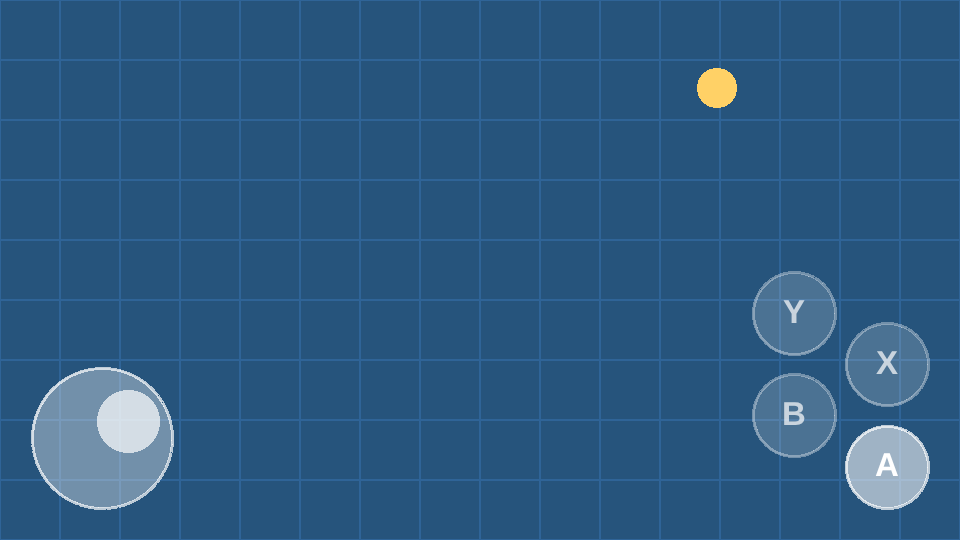
The sticks and buttons are drawn over the game and read by the engine as a pad in a gamepad slot, so everything a game binds with input.bindGamepad answers to them. One set of bindings covers a real pad and the touch controls.
- one or two sticks, analog, with a deadzone, and pressing the D-pad in 8 directions
- sticks fixed in a corner, or floating: appearing under the thumb wherever it lands, on its half of the screen, anywhere, or in a zone of your choosing
- buttons fixed in place, or floating: pressed wherever a finger lands in their area and drawn under it
- a quick tap on a stick can press a button or a key, so one thumb both steers and acts, with no button on the screen
- any number of buttons, each pressing a pad button or a key, that a game can relabel, dim or hide
- each finger followed on its own: hold the stick and press a button at the same time
- every press lasts at least one frame, so even the quickest tap reaches the game
- two thumbs at once on iOS too: Safari's pinch gesture is kept from taking the second finger
- a touch that starts on the controls does not reach the game
- drawn over the whole frame, above every renderable and every camera (a minimap does not show them), and kept across stage changes
- drawn with the renderer's own shapes by default, or with regions from the game's texture atlas
- hidden while the player uses a real pad, and back on the next touch
- a light vibration on each button press, as a real button gives, and
input.vibrateGamepadvibrating the phone, where the browser supports it
Install
npm install melonjs @melonjs/gamepad-plugin
It needs melonJS 20.12 or later.
Quick start
import { Application, input, plugin } from "melonjs";
import { GamepadPlugin } from "@melonjs/gamepad-plugin";
const app = new Application(1024, 768, { parent: "screen", scaleMethod: "flex" });
await app.init();
// a stick and two buttons, shown on touch screens
plugin.register(GamepadPlugin, "gamepad", {
buttons: [{ label: "A" }, { label: "B" }],
});
// the game binds the pad as it would a real one
input.bindKey(input.KEY.LEFT, "left");
input.bindKey(input.KEY.RIGHT, "right");
input.bindKey(input.KEY.X, "jump", true);
input.bindGamepad(0, { type: "buttons", code: input.GAMEPAD.BUTTONS.LEFT }, input.KEY.LEFT);
input.bindGamepad(0, { type: "buttons", code: input.GAMEPAD.BUTTONS.RIGHT }, input.KEY.RIGHT);
input.bindGamepad(0, { type: "buttons", code: input.GAMEPAD.BUTTONS.FACE_1 }, input.KEY.X);
The stick presses the D-pad buttons as it leans, and reports its analog position on GAMEPAD.AXES.LX and LY, which a game can bind with a threshold or read on event.GAMEPAD_UPDATE. The first button presses FACE_1, the second FACE_2, and so on.
A game that reads the keyboard only can have the controls press keys instead:
plugin.register(GamepadPlugin, "gamepad", {
sticks: [{ keys: { left: input.KEY.LEFT, right: input.KEY.RIGHT } }],
buttons: [{ key: input.KEY.SPACE, label: "Jump" }],
});
Options
| Option | Default | |
|---|---|---|
enabled |
device.touch |
show the controls: by default on any touch screen, touch laptops included |
index |
0 |
the gamepad slot they report in |
sticks |
1 |
how many sticks (0 to 2), or a list of stick options |
buttons |
1 |
how many buttons, or a list of button options |
hideOnGamepad |
true |
hide them while a real pad is in use |
color |
"#ffffff" |
their color |
skin |
none | an already-loaded TextureAtlas for named control regions; atlas colors are preserved |
opacity |
0.35 |
how opaque they are at rest; a press doubles it |
margin |
6% of the shorter side | the space kept from the edges of the viewport |
vibrate |
true |
let input.vibrateGamepad vibrate the phone |
haptics |
10 |
how long a button press vibrates, in milliseconds, for the feel of a real button; 0 for none |
Sizes and positions are in viewport pixels, the same units the game is drawn in. The controls keep their place when the viewport is resized or turned.
Sticks
| Option | Default | |
|---|---|---|
side |
"left", then "right" |
the left stick reports LX/LY, the right one RX/RY |
base, thumb |
none | regions in skin, scaled to the base's diameter and the thumb's diameter (45% of the base); omitted parts keep their shapes |
position |
its bottom corner | { left or right, top or bottom }: from the edges to its center |
radius |
13% of the shorter side | the radius of its base |
floating |
false |
centered where the thumb lands, inside its area |
area |
"half" |
where a floating stick can be picked up: "half", its half of the screen; "screen", anywhere; or { x, y, width, height } in viewport pixels. See where controls overlap |
hideAtRest |
false |
draw a floating stick only while a finger holds it, so it appears under the thumb and goes when the thumb lifts |
tap |
none | { button, key, time }: a quick tap that does not steer presses this pad button (FACE_1 by default, none when key is given) or this key, for one frame. A tap lifts within time ms (250) and never leans as far as dpadThreshold; a cancelled touch is not one. A fading ring marks where it landed |
deadzone |
0.1 |
how far it must lean (0 to 1) before it reads anything |
dpad |
on for the left stick | press the D-pad buttons in 8 directions |
dpadThreshold |
0.5 |
how far the thumb must travel (0 to 1) to press the D-pad and its keys; lower for a stick that answers sooner |
keys |
none | { up, down, left, right }: keys to press as it leans |
Buttons
| Option | Default | |
|---|---|---|
button |
FACE_1, FACE_2… |
the pad button it presses; null for none |
key |
none | a key to press, instead of a pad button unless button is also given |
label |
none | the text on it |
region, pressed |
none | regions in skin, scaled to the button's diameter; pressed is optional; otherwise the resting region is drawn slightly smaller while held |
position |
gathered in the bottom-right corner | from the edges to its center |
radius |
7.5% of the shorter side | its radius |
floating |
false |
pressed wherever a finger lands inside its area, and drawn under that finger while held; it rests at its position |
area |
"half" |
where a floating button can be pressed: "half", the half of the screen its position is on; "screen", anywhere; or { x, y, width, height } in viewport pixels. See where controls overlap |
hideAtRest |
false |
draw a floating button only while a finger holds it; let go, it fades where it was |
With a second stick, the buttons gather above it.
Custom skins
Use regions from a preloaded atlas to match the game's art. Once the application is initialized and the atlas JSON and image are loaded:
import { loader, plugin, TextureAtlas } from "melonjs";
import { GamepadPlugin } from "@melonjs/gamepad-plugin";
const skin = new TextureAtlas(loader.getJSON("controls"), loader.getImage("controls"));
plugin.register(GamepadPlugin, "gamepad", {
skin,
sticks: [{ base: "stick_base.png", thumb: "stick_thumb.png" }],
buttons: [{ label: "A", region: "button.png", pressed: "button_down.png" }],
});
Skins change the artwork, not the layout or circular hit areas: radius and
position still define those. Regions are centered and stretched to the control's
diameter square, so use square artwork to preserve its proportions;
their colors are preserved, while color still colors labels, feedback rings
and any parts drawn as shapes. Atlas packing, including rotated and trimmed
frames, is handled by the engine's sprites.
opacity, the hold highlight, floating controls, hiding and dimming still
apply, including the hold highlight when a pressed region is supplied.
A label stays above the button image. Omit pressed to reuse the
resting image, drawn slightly smaller while held, with the hold highlight; omit any other region to keep that
part's shapes. A named region requires skin and must exist in it; a missing
region throws during registration.
Floating controls
A floating stick or button has no fixed spot: it shows up under the finger wherever that lands inside its area, follows it while held, and goes back to its position when let go. With hideAtRest it is not drawn at all until touched, as in most mobile games.
The two-thumb layout: the left thumb steers anywhere on the left half, the right thumb fires anywhere on the right half, and neither shows until touched.
plugin.register(GamepadPlugin, "gamepad", {
sticks: [{ floating: true, hideAtRest: true }],
buttons: [{ floating: true, hideAtRest: true, label: "A" }],
});
A stick that appears anywhere, with a button that keeps its corner:
plugin.register(GamepadPlugin, "gamepad", {
sticks: [{ floating: true, area: "screen", hideAtRest: true }],
buttons: [{ label: "A" }],
});
Or no button at all: drag anywhere to steer, tap anywhere to act.
plugin.register(GamepadPlugin, "gamepad", {
sticks: [{ floating: true, area: "screen", hideAtRest: true, tap: { key: input.KEY.SPACE } }],
buttons: 0,
});
area can also keep a floating control to part of the screen, the lower half under a board say: area: { x: 0, y: 512, width: 576, height: 512 }.
Where controls overlap
A finger landing takes the first control that is free there, in this order:
- fixed buttons
- fixed sticks
- floating buttons
- floating sticks
So a fixed button is always a button, and a floating button whose area lies inside a floating stick's carves that part out of the stick's: with the stick on "screen" and the button on its "half", the button owns the right half and the stick the rest. A floating control takes one finger at a time: a second finger in its area falls through to the next control in the list.
Several floating buttons can share an area, the right half by default: a finger landing there presses the one that rests nearest to it, so each owns the part of the area around its position, and two fingers can hold two of them at once. A finger nearest to a button already held presses no other button; it falls through to a floating stick, if any. For fixed zones instead, give each its own area, top and bottom of the right half say:
buttons: [
{ floating: true, label: "A", area: { x: 288, y: 512, width: 288, height: 512 } },
{ floating: true, label: "B", area: { x: 288, y: 0, width: 288, height: 512 } },
],
With hideAtRest the players cannot see where buttons rest, so give buttons that share an area visible resting spots, or their own areas.
Quick taps
A press lasts until a frame has seen it, however quick the tap: a thumb tapping in 15 ms, quicker than a frame, still presses the button for that frame, where it would otherwise press and let go between two updates and never reach the game. A press a frame has already seen lets go at once.
At run time
const gamepad = plugin.cache.gamepad as GamepadPlugin;
// a stage that only needs a tap
gamepad.enabled = false;
// light the use button only when there is something in reach
gamepad.buttons[1].dimmed = !nearSomething;
gamepad.buttons[1].label = "Open";
gamepad.buttons[1].visible = false;
// word a prompt for the player's controls
const prompt = gamepad.visible ? "Tap A to start" : "Press X to start";
enabled: switches the controls on and offvisible: whether they are on the screen, which isenabledand not hidden for a real padsticks[i]: a stick'svalue(x,yfrom -1 to 1),center(under the thumb while a floating stick is held) andradius;tapping, true for the frame a tap presses its button; and the options it was made with,floating,areaandhideAtRestbuttons[i]: a button'spressed(while a finger is on it, and for at least one frame),center(under the finger while a floating button is held), and itslabel,dimmedandvisible, which can be set; and the options it was made with,floating,areaandhideAtRestdestroy(): takes the controls off the screen and out of their slot for good
Hidden for a real pad
With hideOnGamepad (on by default) the controls hide as soon as the player uses a real pad, a button pressed or a stick pushed, and come back when the screen is touched or the pad is unplugged. Any pad counts, whatever its slot.
A real pad and the touch controls can share a slot: the engine reads both, and either one presses a button.
On iOS
Two fingers down start Safari's own pinch gesture, even over a canvas with touch-action: none, and while it runs it can take the second finger, so a thumb holding a stick would only sometimes let the other press a button. While the controls show, the plugin cancels Safari's gesturestart, gesturechange and gestureend, which keeps both fingers for the game; it lets them through again while the controls are hidden or switched off.
Troubleshooting
| Symptom | Cause |
|---|---|
| The controls do not show | enabled defaults to device.touch, false without a touch screen: pass enabled: true to try them on a desktop. They also hide while a real pad is in use |
| Touch controls do nothing | Nothing is bound to their slot: bind with input.bindGamepad(index, ...) on the plugin's index (0 by default), or use key options |
| The stick moves but nothing walks | Nothing is bound to what the stick reports: its axes (LX, LY), or the D-pad buttons, which only the left stick presses by default |
gamepad 0 already holds a virtual gamepad |
Two sets of controls in one slot: give the second one another index |
| A floating stick does not answer on the right half | Its area is "half" by default, its own side: use area: "screen" |
A floating stick with area: "screen" does not answer on the right half |
A floating button's area comes first there, the right half by default: that part is the button's, see where controls overlap |
| A tap on a stick moves the player instead of acting | It leaned past dpadThreshold before lifting, or lasted longer than tap.time: raise either |
Developing
pnpm -F @melonjs/gamepad-plugin visual serves a visual test page, with the controls over a small scene and toggles for each feature, to try on a desktop or a phone: see visual/README.md. pnpm -F @melonjs/gamepad-plugin test runs the tests.
License
MIT